
Start-to-export workflow
How to Use Seedance to Create a Video
How do users create a video with Seedance?
To create a Seedance video, first choose an access channel, then select text-to-video or image-to-video, prepare only the inputs needed for one shot, write a literal prompt, choose settings shown by that product, generate, inspect failures, change one variable at a time, export the result, and confirm you have rights to every input and intended use.
- Verified
- Primary sources
- 3
- Language
- English
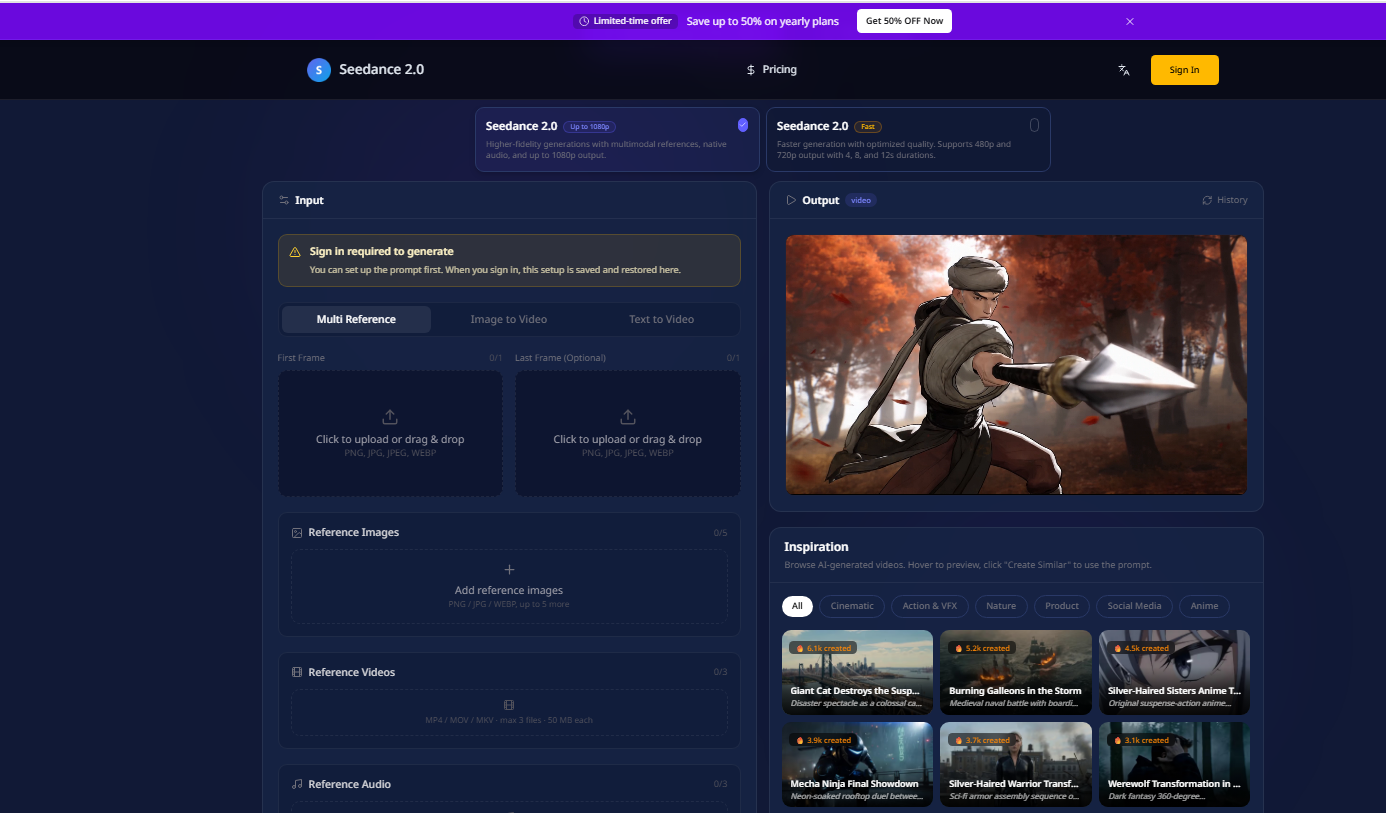
The workflow is channel-neutral. Product settings listed below describe the current Seedance2Video browser interface, not a universal specification for every Seedance provider.
The 10-step Seedance workflow
- 01
Choose an access channel
Decide whether you need a ByteDance consumer product, the official developer API, or an independent browser workflow.
- 02
Choose text-to-video or image-to-video
Use text-to-video when the scene begins from language; use image-to-video when a source image must anchor composition or identity.
- 03
Prepare the inputs
Use only the reference assets needed for the shot and confirm you have permission to upload them.
- 04
Write the prompt
State the subject, action, environment, framing, one camera movement, lighting, style, and audio intent in literal language.
- 05
Choose available settings
Select only the model, duration, resolution, aspect ratio, and toggles currently visible in the product.
- 06
Generate
Review the live credit estimate, sign in if required, and submit one controlled task.
- 07
Inspect failures
Classify the main problem before editing: identity, motion, framing, physics, text, audio, or reference conflict.
- 08
Change one variable
Edit only one major input or setting so the next result is interpretable.
- 09
Export
Preview the completed result and download the available MP4 file.
- 10
Check rights
Review commercial-use terms and confirm rights to prompts, references, portraits, brands, music, and other source material.
Settings currently available on Seedance2Video
Read the live interface before submission. These values come from the current product code and can change after this page is verified.
| Control | Seedance 2.0 | Seedance 2.0 Fast |
|---|---|---|
| Modes | Multi-Reference, Image-to-Video, Text-to-Video | Multi-Reference, Image-to-Video, Text-to-Video |
| Duration | 4-15 seconds | 4, 8, 12 seconds |
| Resolution | 480p, 720p, 1080p | 480p, 720p |
| Aspect ratio | 16:9, 4:3, 1:1, 3:4, 9:16, 21:9 | 16:9, 4:3, 1:1, 3:4, 9:16, 21:9, Adaptive |
| Visible toggles | Camera fixed, Generate audio, Return last frame | Camera fixed, Generate audio, Return last frame |
| Export | MP4 | MP4 |
Prompt checklist before generation
- One main subject or clearly assigned roles.
- One readable action with a beginning and end.
- Environment and time of day.
- Framing such as wide shot, medium shot, or close-up.
- One camera movement, or an explicit static shot.
- Lighting, visual style, and mood.
- Audio intent only if audio is enabled.
- No contradictory movement, framing, or timing instructions.
Inspect the failure before rewriting
| Failure | First change to try | Keep fixed |
|---|---|---|
| Subject identity changed | Use or simplify the reference image and identity description | Camera and output settings |
| Motion looks impossible | Reduce action count or speed | Subject and framing |
| Camera ignores direction | Keep one movement and one framing phrase | Subject and action |
| Composition drifts | Use image-to-video or simplify scene geometry | Identity description |
| Audio is distracting | Clarify audio intent or disable it | Visual prompt |
| Prompt is partly ignored | Remove lower-priority adjectives and extra events | Primary action |
Known limitations
- The same prompt can produce different results; generation is not deterministic unless a provider explicitly documents such a control.
- Visible Seedance2Video settings are site-specific and may not match other providers.
- Changing several variables at once makes a retry difficult to diagnose.
- Commercial use depends on current terms and your rights to every input; this page does not grant rights.
Primary sources
Sources were checked on 2026-08-02. External product availability can change after that date.
Continue with the right workflow
Run the workflow with one controlled shot
Open the generator, choose a mode, keep the first prompt narrow, and record each change you make.